First-time setup and updates
Make sure the client starts on its own
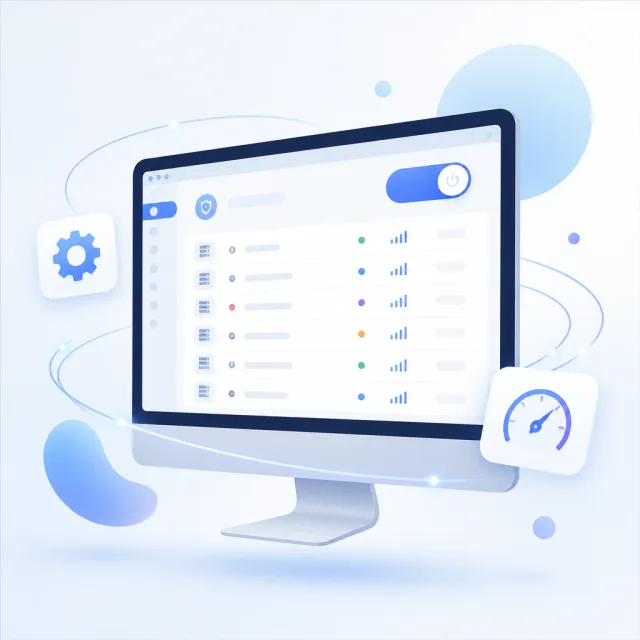
On first launch, check three things: the main window opens, settings can be saved, and the app can be reopened after quitting. On desktop, closing the window may leave the app running in the system tray or menu bar; to restart it, choose Quit from there. If double-clicking doesn't open a window, first check whether a process is already running, then look for system prompts about dependencies, compatibility, or device policies. There's no need to change nodes or routing rules yet—the app hasn't reached the point where it handles traffic.
Tell subscription links apart from single-node links
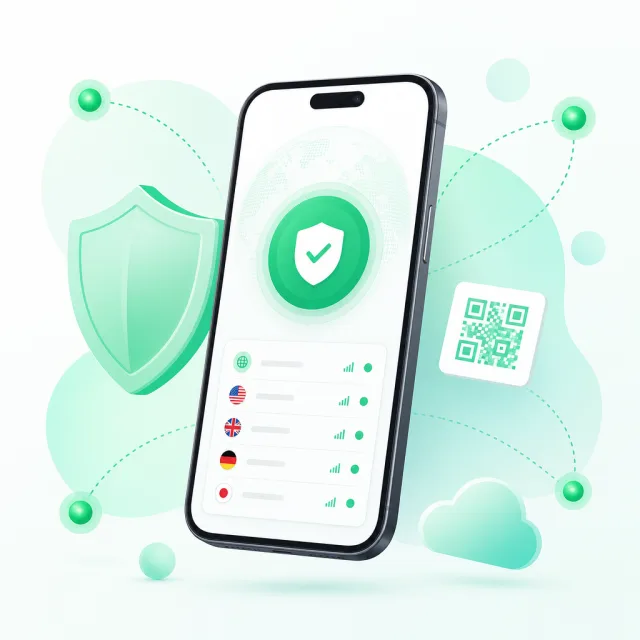
A subscription URL fetches a list of nodes. Usually, you need to add a group first, then update it manually. A single-node link describes just one node; import it using the client's clipboard or QR code option. After importing, check that the node appears in the list, then select it as the active node. If an update reports success but the list is still empty, make sure you're viewing the group you just updated, then check that the URL was copied in full, the subscription hasn't expired, and its response format is supported by the client. Subscription URLs may contain access credentials; don't post them in public comments or screenshots.
Desktop and Android clients use different menu labels. Follow the subscription import steps for guidance. Still deciding which Android client to use? Compare their cores and use cases in the client comparison, then return here to download the right package.
Test the connection before changing proxy settings
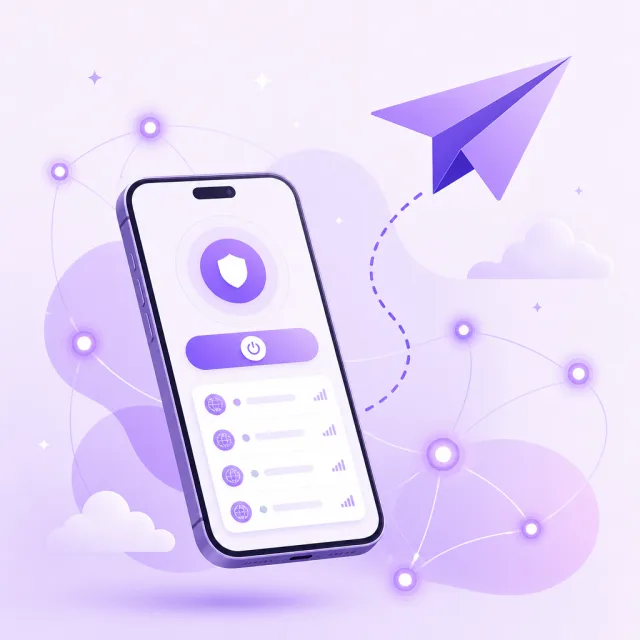
Test with a known-working node before changing settings, and adjust one thing at a time. On desktop, after enabling the system proxy, test with a browser that respects system proxy settings. Other apps may use their own network settings, so browser access doesn't mean every app uses the same route. On Android, the first connection usually triggers a system VPN confirmation. If another app is already using the VPN, disconnect it before retrying.
If your local network stops working after you enable the proxy, restore the previous proxy state first, then check the client's startup and connection messages. Change one setting at a time and test again—for example, switch the active node and see whether the problem follows it before changing proxy mode. Changing several options at once makes troubleshooting harder. Once the connection is stable, add rules using the routing and split tunneling guide, then test requests that should connect directly and through the proxy.
Keep a restorable backup before updating
If the old client still opens, use its export or backup feature first. If it doesn't have one, note your subscription groups, active node, proxy mode, ports, and custom routing rules, and safely save any configuration data you need. When updating the same client, check the platform, architecture, and distribution channel. When switching clients, import a subscription or individual node first, then reconfigure local settings one by one. Don't overwrite the new app's configuration folder.
After upgrading, check the installed version on the About page. Then confirm that subscriptions update, nodes can be selected, and the proxy can be enabled and disabled. Finally, check startup launch, automatic subscription updates, and custom rules. If you need to roll back, first confirm whether the older version can read settings written by the newer one. If you're unsure, keep both backups and don't overwrite either with the other.